 Mnemor
How Mnemor works
Last updated: 30 July 2026
Most apps that touch your mail say "we use AI" and leave you to guess what that means. This page is the opposite: every workflow in Mnemor, step by step. Any step that can send text off your phone is marked as one — the rest, silently, cannot.
The short version. Deciding what needs you is ordinary code running on your iPhone — no model, no network. AI is only used for things you explicitly ask for, like a drafted reply or a summary. Most of the steps below never leave the device.
Reading the diagrams
Each workflow is a list of steps. The dot beside a step tells you the only thing that really matters about it:
- Stays on your phone
- On-device where the hardware allows
- Sends one excerpt out
- Waits for your tap
Anything that can leave the phone is also labelled in words, so you never have to rely on the colour. An unlabelled step did not send anything.
What actually runs a step
Four kinds of machinery, plus you. Only one of the four can reach the internet.
| Layer | What it is | Leaves the phone? |
|---|---|---|
| Rules | Deterministic Swift running on the device — scoring, matching, parsing, thresholds. No model is involved at any point. | No. |
| On-device | Apple's frameworks: on-device text recognition (Vision), on-device speech recognition, and Apple's on-device language model on supported hardware. | No. |
| Cache | A previous result, stored encrypted on the device and reused so the same question is not asked twice. | No. |
| Cloud AI | One text excerpt sent to Anthropic — either with your own API key or the built-in one. Logged in the app every time. | Yes — the excerpt only, and only in this layer. |
| You | A human tap. Nothing is sent, approved, replied to or merged without one. | Whatever you chose to send. |
The one path to a model
There is exactly one function in the app that can talk to a language model. Every feature goes through it, so the controls below cannot be bypassed by any individual feature — including one we add later.
-
Subscription check
If you are in read-only mode, the call stops here and never happens.
-
Prompt-injection hardening
Instructions are added to every call so that text arriving from an email, a web page or a pull request cannot redirect the assistant.
-
Credential scrubbing
API keys, bearer tokens, JWTs, private-key blocks, explicit
password:lines and Luhn-valid card numbers are stripped out before the text reaches any prompt — including an on-device one. This is hygiene, not anonymisation; it does not remove names or companies. -
The hard stop
If On-device AI only is switched on, the request may use Apple's on-device model and nothing else. If that model is unavailable, the call returns empty. It never falls through to the cloud, for any feature, ever.
-
On-device first
Short, frequent work — suggestions, thread summaries, drafts, rewrites — is answered by Apple's on-device model where the hardware supports it, and stops here.
-
Your key, or ours Leaves the phone
Only now does anything go out. If you supplied an Anthropic key it is used, so the traffic runs under your own account and agreement; otherwise the built-in key is. Either way the request goes from your phone straight to Anthropic — never through a Mnemor server.
-
Written to your log
The time, the destination and the approximate size. The content never is.
There is no image path. That function accepts text and nothing else — no image, audio or file parameter exists anywhere in the app. Photos, documents and meeting audio therefore cannot reach a model, whatever the settings say. It is structural, not a preference.
Workflows
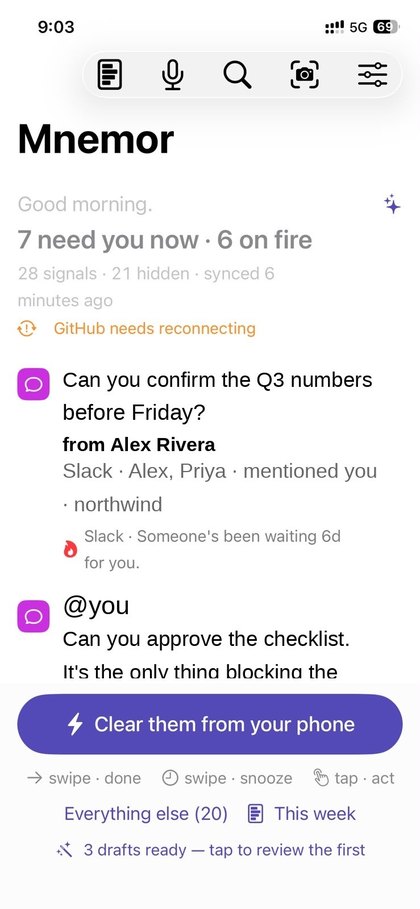
1. Your morning list
The core loop — the thing you actually open the app for.
-
Fetch
Your phone calls Gmail, Slack, GitHub, Calendar and Reminders directly, over TLS, using the tokens you authorised. Nothing is proxied through us.
-
Work out what is an obligation
Unanswered messages, reviews blocking someone, invitations awaiting a reply, things due today — identified by rules, not by a model.
-
Score and rank
Who has waited longest, what is due soonest, what blocks other people, what you have historically acted on. Money and security flags add weight. All of it is arithmetic on your device.
-
Protect the list
Advisory items are capped so they can never crowd out a real obligation. A newsletter cannot outrank a person.
-
Five things, each with a reason
Every item can tell you why it ranked where it did — because the ranking is explainable code, not a model's opinion.
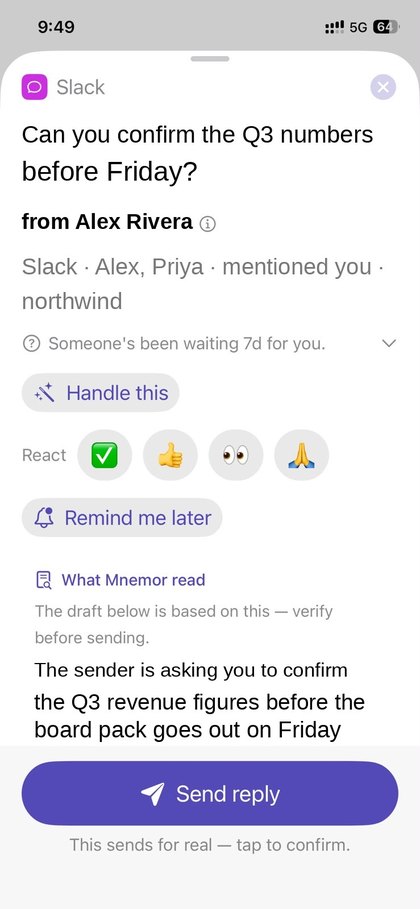
2. Answering something
The first workflow where AI can appear — and only after you open the item.
-
You open a card
Nothing was sent anywhere before this moment.
-
Already summarised?
If this thread was summarised before, the stored result is reused and no call is made.
-
Summarise the thread Cloud only as fallback
The recent messages of that one thread — not your mailbox — are condensed. Apple's on-device model does this where available; otherwise this is a cloud call, and it is logged.
-
Draft a reply Cloud only as fallback
Suggested actions and a reply, from the summary above. They are offered only when there is real context to act on — never guessed from a bare subject line.
-
You edit and send
Mnemor never sends a message on its own. Every reply, approval, RSVP and merge needs your tap — including from the lock screen.
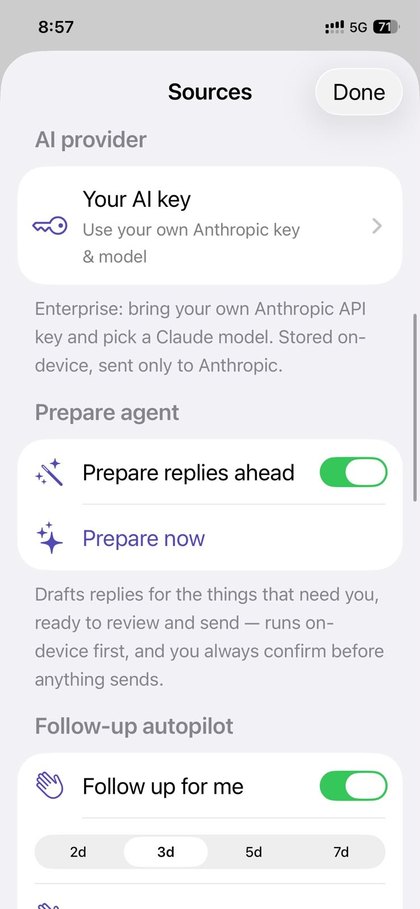
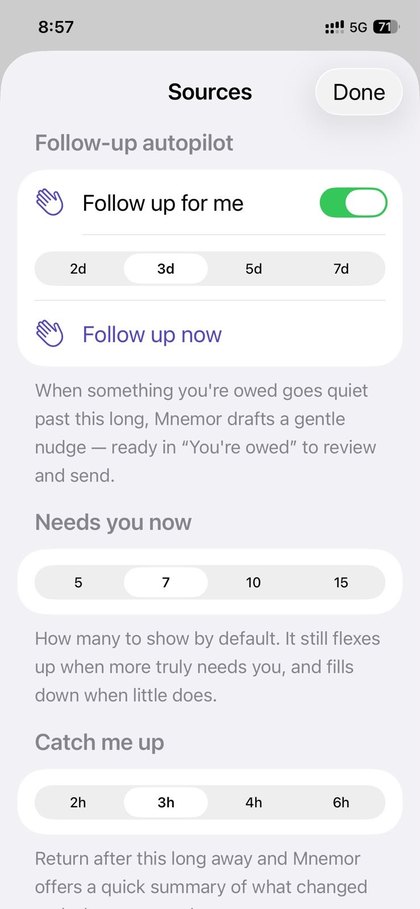
3. Drafted before you even look
The background agents. Opt-in, throttled, and they never send.
-
Pick a few worth preparing
At most five items, no more than once every few hours, and only if you turned the agent on. Selection is rule-based.
-
Draft it Cloud only as fallback
On-device model first, cloud as fallback. For a follow-up, all that is sent is the subject and how long you have been waiting.
-
Sanity-check the output
A deterministic check discards refusals and malformed or over-long output rather than storing it.
-
It waits for you
The draft sits on the card until you open it. Nothing has been sent, and nothing will be.
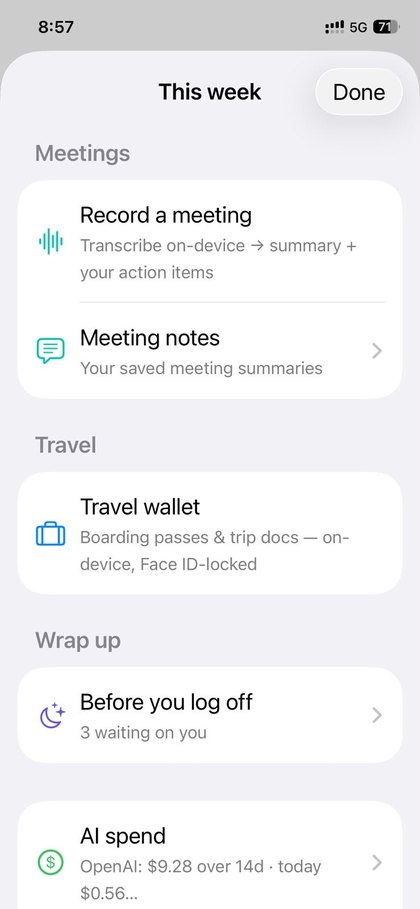
4. Recording a meeting
Audio never leaves the phone. Not in any mode, not with any setting.
-
Transcribe as you go
Apple's on-device speech recognition. The audio is never uploaded and is not retained after the transcript is produced.
-
You stop the recording
The microphone is released immediately, including if you just swipe the screen away.
-
Turn the transcript into notes Leaves the phone
The text transcript is summarised into decisions and action items. This is the one cloud step, and On-device only mode suppresses it — you keep the raw transcript.
-
Your action items join the list
What you committed to in the room becomes tracked items, ranked with everything else.
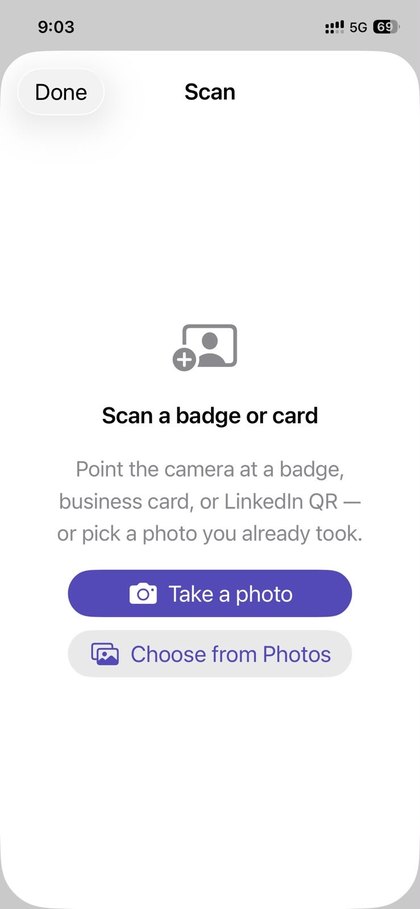
5. Photographing a receipt, badge or boarding pass
The whole workflow is on-device. No model is involved at any step.
-
Read the image
Apple's Vision text recognition extracts the text on the device. The image itself is never transmitted — there is nowhere in the app for it to go.
-
Pull out the fields
Merchant, total and date from a receipt; name, company and title from a badge; flight, gate, seat and date from a boarding pass. Pattern matching, not AI.
-
Stored, sealed
Written encrypted on the device. Travel documents are additionally kept out of device backups and locked behind Face ID.
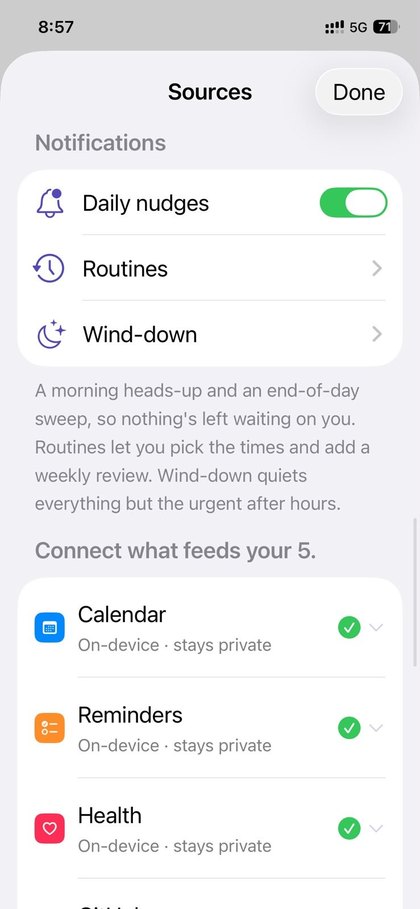
6. Nothing dropped
Catching your own promises. Entirely rule-based.
-
Hear the promise
Phrasing like "I'll send it Friday" in something you wrote is detected by pattern matching on the device.
-
Track both directions
What you owe other people, and what you are still waiting on from them — with the wait time ageing in the ranking.
-
The end-of-day sweep
Three short lists before you log off: owed, awaiting, promised. Swipe to clear.
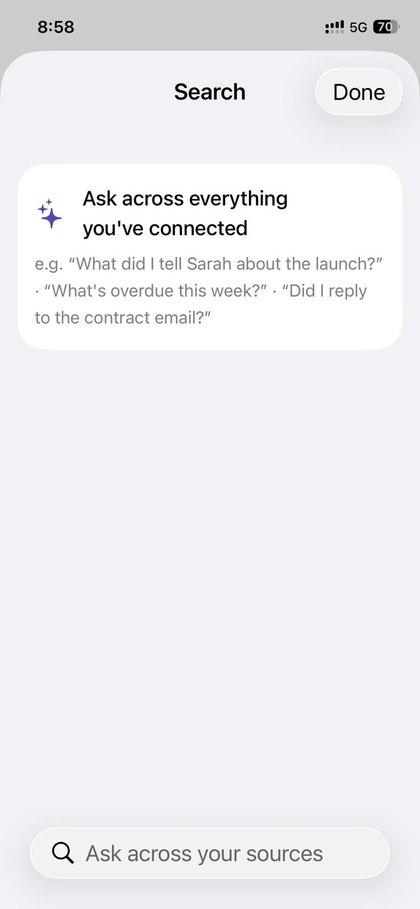
7. Asking a question
Search, by text or voice, across everything you have connected.
-
Hear the question
Voice input is transcribed on-device.
-
Find candidates locally
Your items, notes and meetings are matched on the device. The corpus is never uploaded.
-
Compose the answer Leaves the phone
Your question plus the titles and snippets that matched are sent — the matches only, not everything you have.
-
An answer that cites its items
You can open every item it drew on.
Every AI call the app can make
The complete list. Nothing else in the app calls a model. Fast uses Apple's on-device model where the hardware supports it, and only reaches the cloud otherwise; Smart is a cloud call, and stands down entirely in On-device only mode.
| What you tapped | Tier | What is sent |
|---|---|---|
| Suggested actions on a card | Fast | That item plus its thread summary |
| Thread summary | Fast | Recent messages of that one thread |
| The brief's opening line | Fast | Titles of the current five (has a non-AI fallback) |
| A pre-drafted reply | Fast | Thread summary and what you decided before |
| A follow-up nudge draft | Fast | Subject and how long you have waited |
| Draft intro to a new contact | Fast | Name, company, role |
| Polish / shorter / warmer / firmer | Fast | Only the text you typed |
| Explain this | Smart | That item's title and context |
| Quick review of a pull request | Smart | The diff |
| Search or voice ask | Smart | Your question and the items that matched |
| Catch me up | Smart | Titles of what changed while you were away |
| Weekly review | Smart | Your on-device decision log for the week |
| Brief me on a person or project | Smart | Items and decisions mentioning them |
| AI spend narrative | Smart | Spend figures and money-flagged titles |
| Your world digest | Smart | Public headlines filtered to your industries |
| Meeting notes | Smart | The on-device transcript text |
| Prep me for this meeting | Smart | Attendees and what is open with them |
| Evaluate a capture | Smart | Text read from it, plus your question |
| Summarise a shared document | Smart | Text extracted from it |
| Handle this | Smart | Thread summary and your free slots |
| Research a contact you scanned | Smart | The only step that searches the web. Name and company only — and it is disabled unless both are known, so a bare name is never guessed at. |
Why the same question is rarely asked twice
Results are cached on the device, encrypted, and thrown away when you change model. Reopening a card does not repeat a call.
| Result | Reused for |
|---|---|
| Thread summaries, suggestions, explanations | Until evicted |
| Pre-drafted replies | 24 hours |
| Person or project brief | 1 day |
| Spend narrative | 3 days |
| Weekly review, world digest | 6 days |
| The brief's opening line | Until the five actually change |
Checking any of this yourself
Open Settings → Privacy & security → Activity log. Every call on this page appears there with its time, its destination — on-device or a named provider — and roughly how much text was sent. Content is never recorded. Review the last 3, 7 or 30 days.
To end all of it in one switch: Settings → Privacy & security → On-device AI only. The workflows above marked Rules and On-device carry on exactly as they are; the cloud steps stand down rather than degrade quietly. The full security model · what each connector reads.